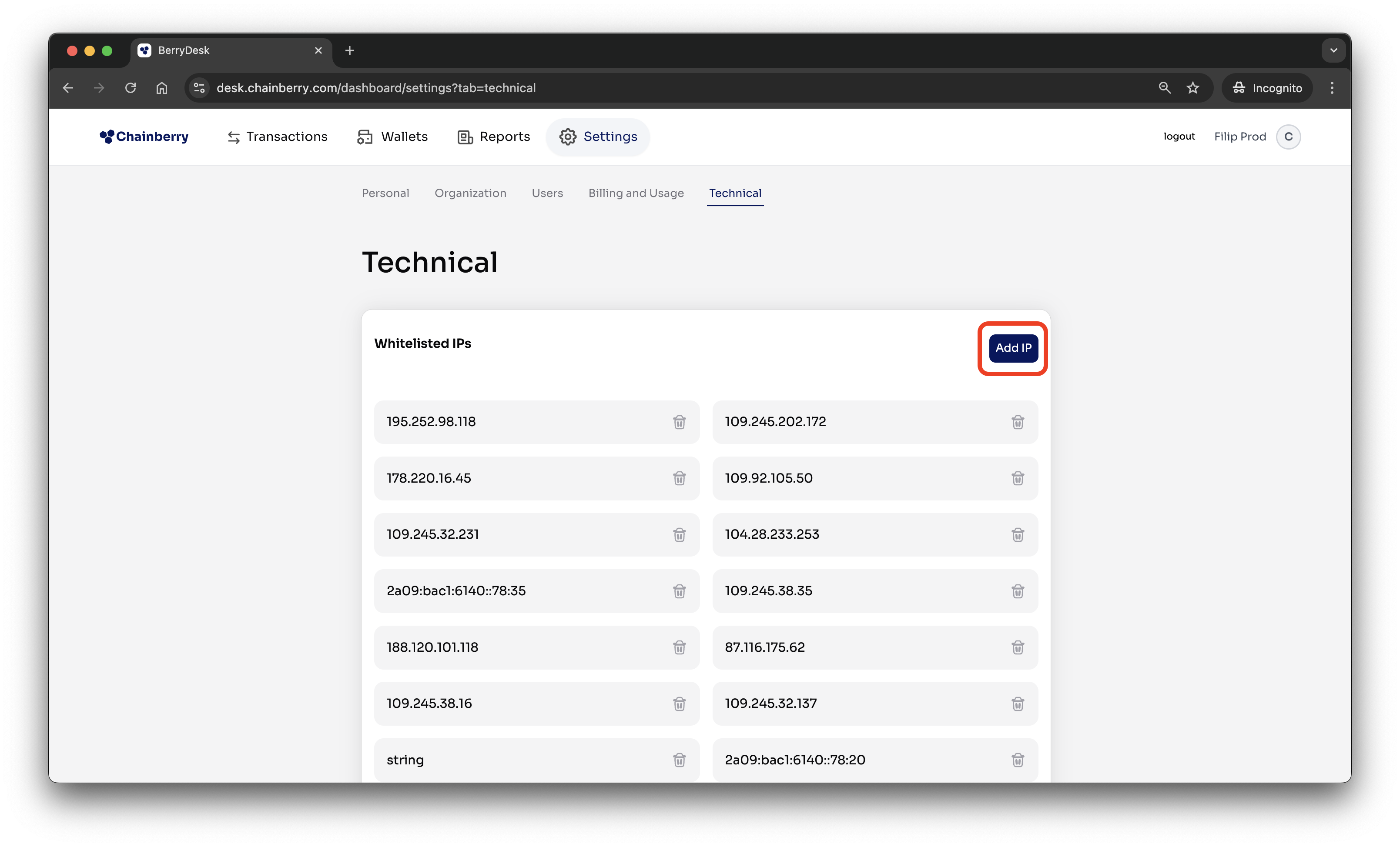
IP Whitelisting adds an extra layer of security by restricting access to BerryDesk to approved IP addresses only. Available under Settings → Technical, this feature allows admins to add or remove allowed IPs, ensuring that only requests coming from trusted networks can access your BerryDesk environment.
Here you will find:
How to whitelist an IP?
- Press Add IP button
- Enter the IP you want to whitelist. Both IPv4 and IPv6 are supported
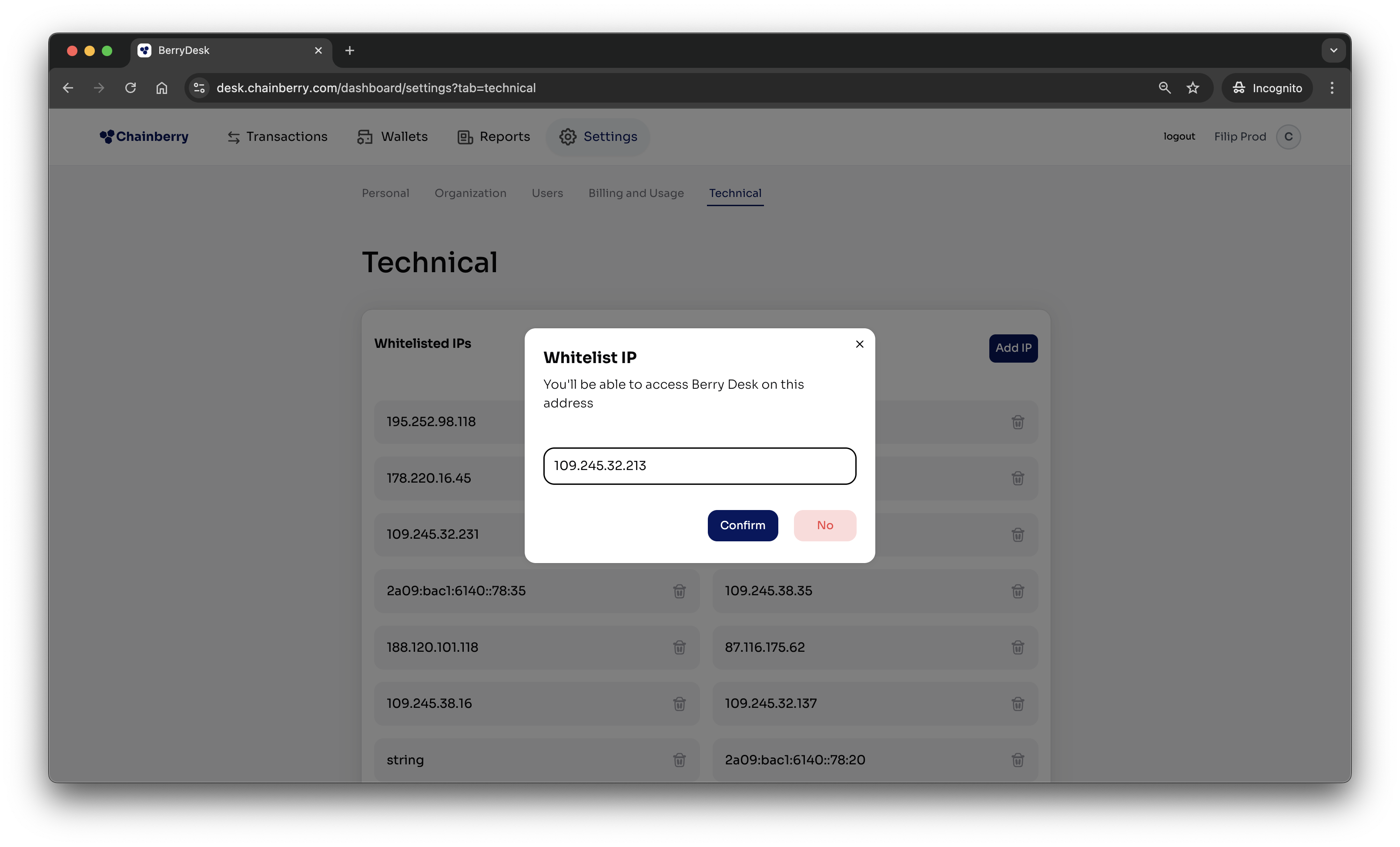
- Press confirm
How to remove an IP from the list?
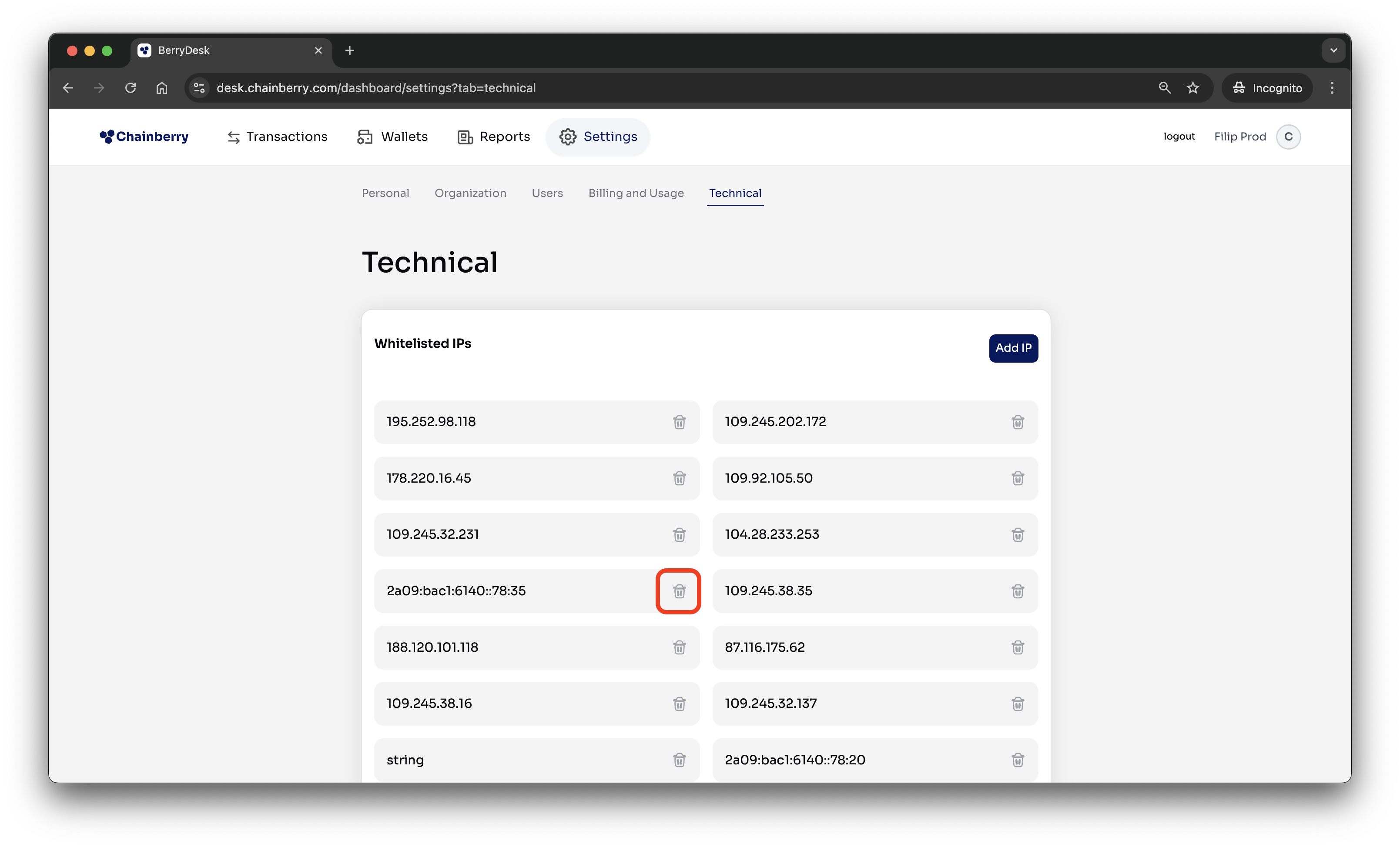
- Press the Delete icon next to the IP you want to remove
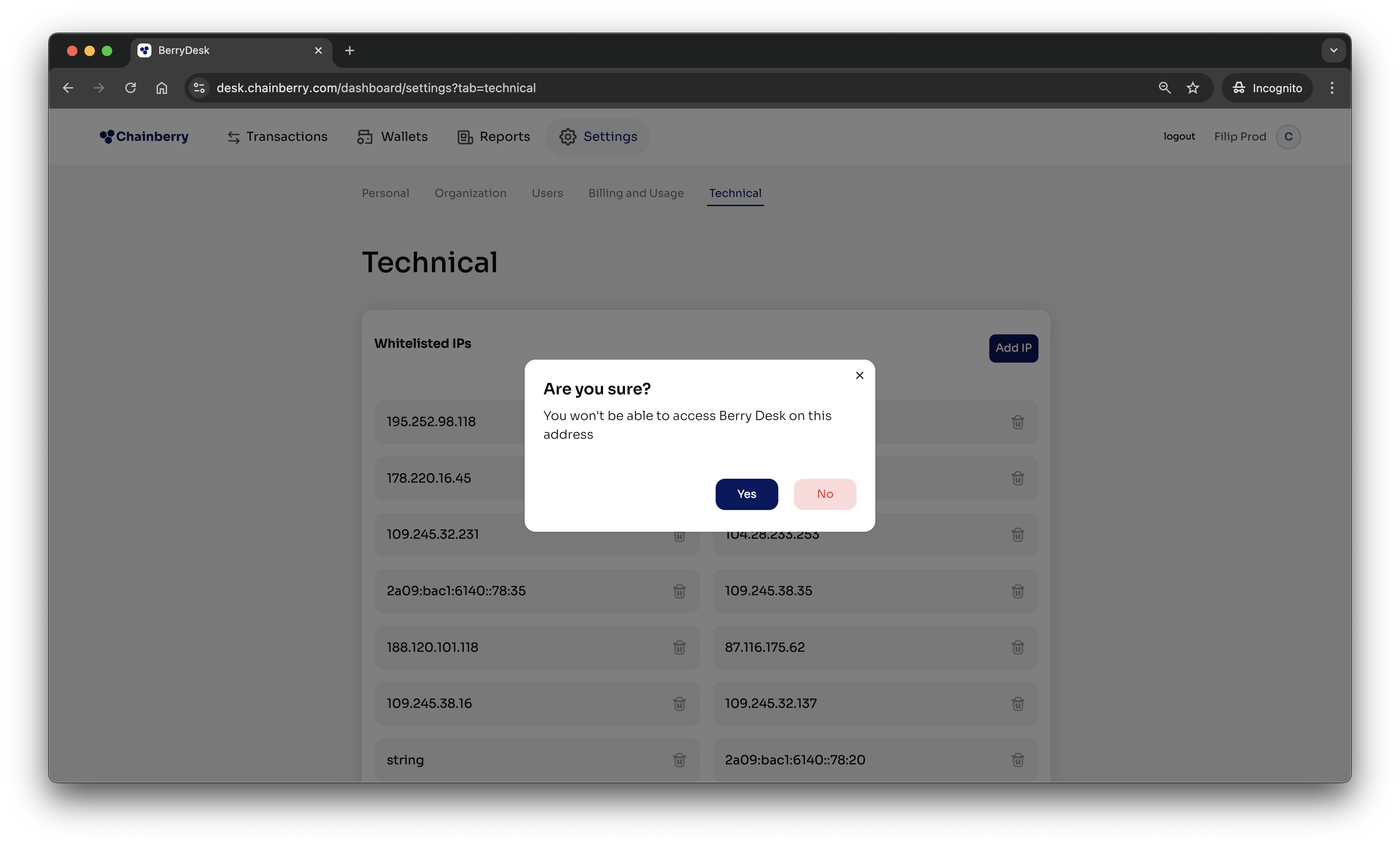
- Press Yes